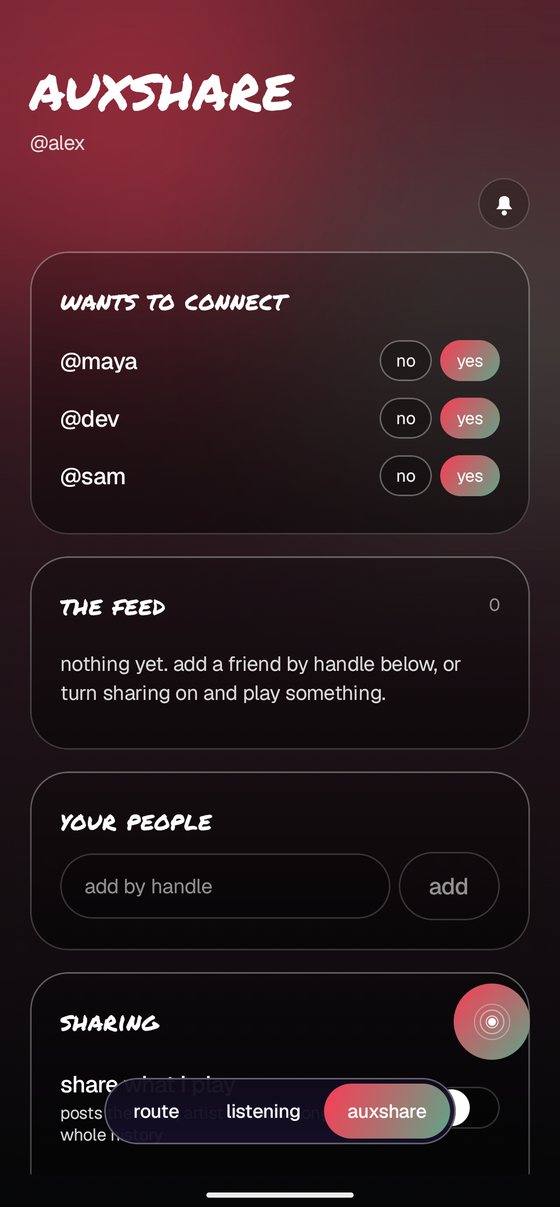
what crossfeed player does
Four things, in four tabs at the bottom of the screen.
- route takes any music link somebody sends you and opens it in the app you use.
- player plays the music files already on your phone.
- listening keeps a private diary of everything you play, in any app.
- auxshare shows a small feed of what a few people you choose are playing.
Setting all four up takes about five minutes, once. Nothing here needs an account except auxshare, and that one only needs a name you pick yourself.
pick the app you listen in
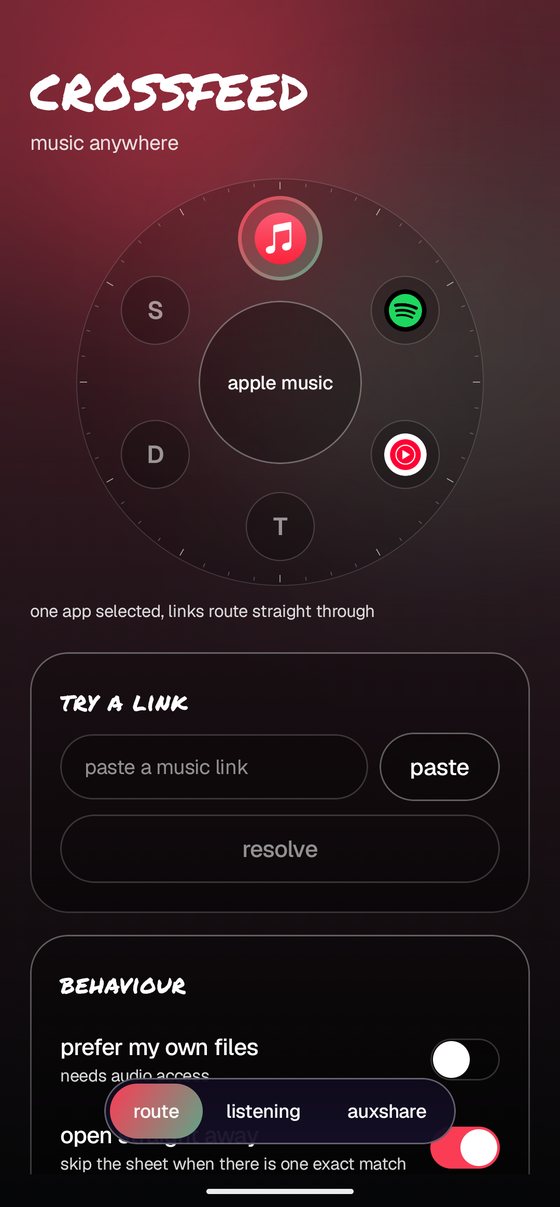
The wheel shows the music apps on your phone. Tap the one you use. It lights up, and its name appears in the middle.
- Pick one and links go straight there, no questions asked.
- Pick several and Crossfeed asks which one each time.
Drag the wheel round if your app isn't visible. Apps you don't have installed show as a plain letter.
two switches worth understanding
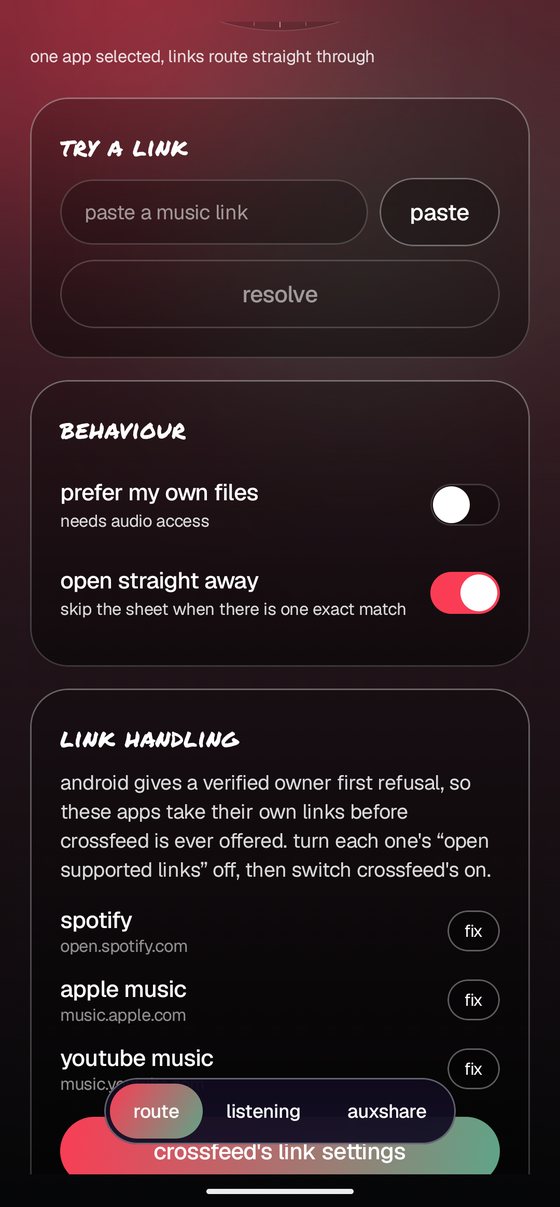
prefer my own files. If you already own the song, play your copy instead of streaming it. Turning this on asks for permission to read audio on your phone, and tells you how many tracks it found.
open straight away. Skip the confirmation sheet when Crossfeed is certain it found the right song.
It will still ask sometimes, and that is deliberate. Live versions, remixes and playlists cannot be matched exactly, so it checks rather than opening the wrong thing.
let crossfeed catch the links
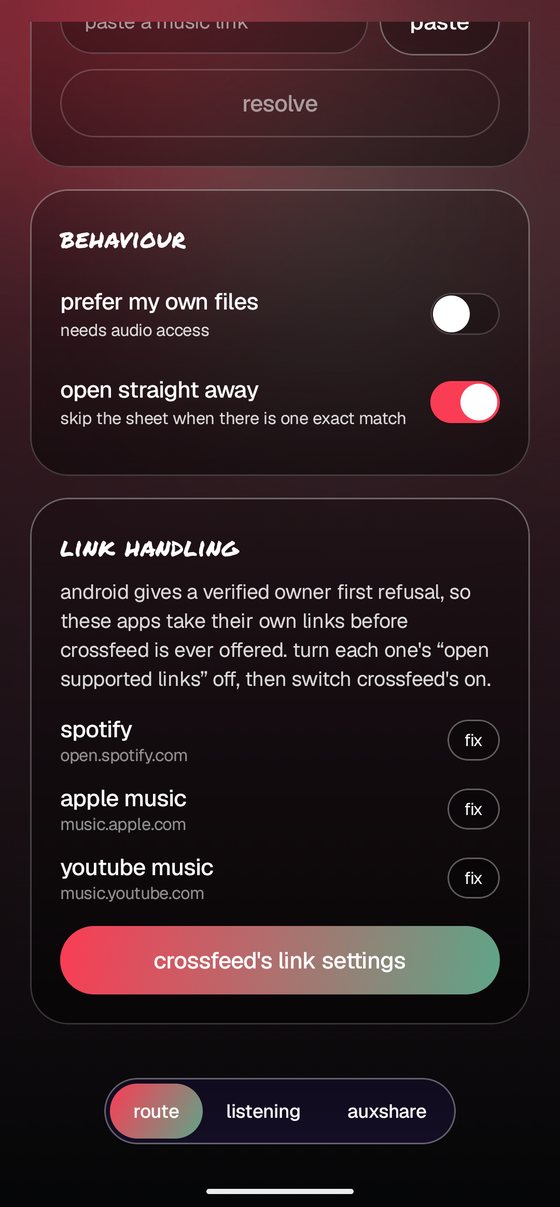
This is the fiddly bit, and the only part that needs the Android settings app. Skip it if you like, because sharing a link to Crossfeed always works. This step is what makes links open in Crossfeed when you simply tap them.
Android gives an app first refusal on its own web addresses, so Spotify grabs Spotify links before Crossfeed is ever offered. You have to hand them over.
- Tap fix next to each app listed.
- In the screen that opens, turn open supported links off.
- Come back and tap crossfeed's link settings.
- Turn open supported links on, and tick the addresses.
your own music, no second app
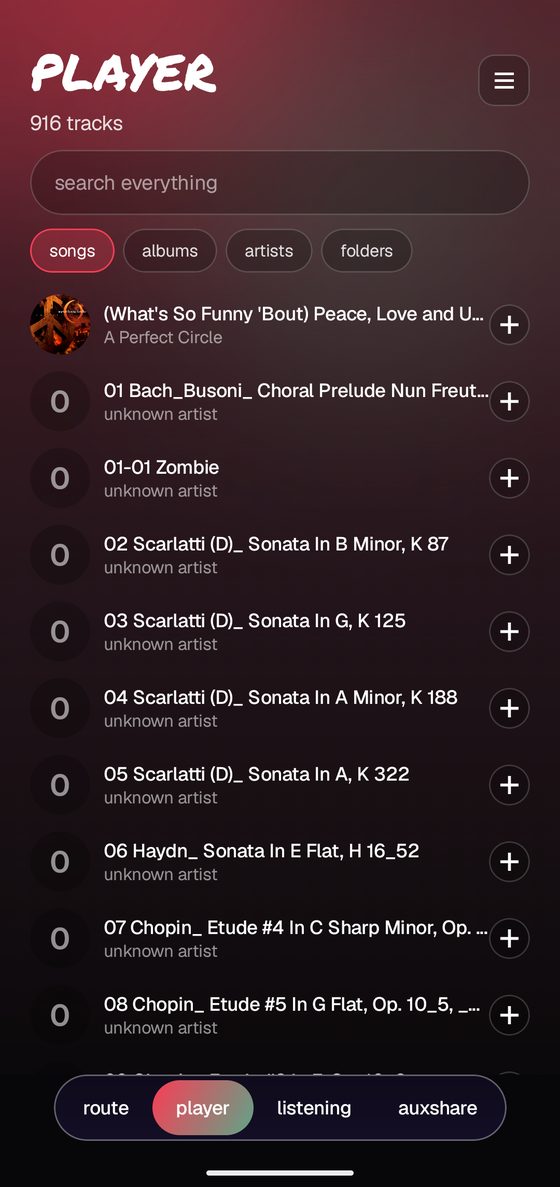
The player tab plays the audio files sitting on your phone. Nothing is streamed, nothing is downloaded, and it needs no account.
The first time you open it, Android asks for permission to read audio. Allow it and your library appears, counted at the top.
If the count looks low, it ignores anything shorter than 45 seconds, which keeps ringtones and notification sounds out of the way.
four ways in, two ways to look
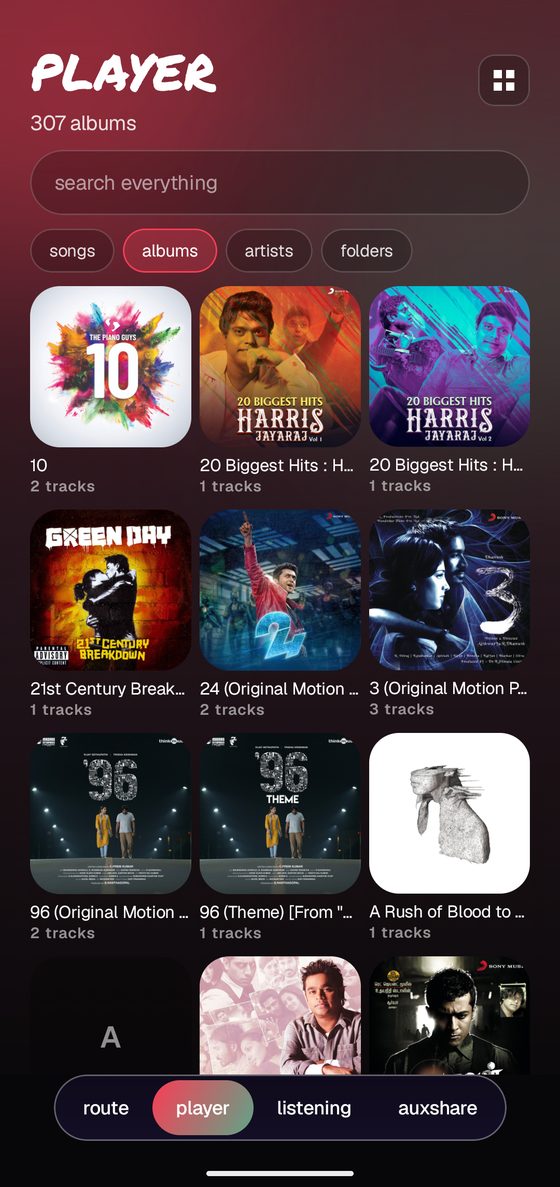
songs, albums, artists, folders run across the top. Tap a chip to change what you are browsing.
The button in the top corner switches between a list and a grid of covers. The choice sticks, and it applies to whichever view you are in.
Tap any album or artist to open it. The + on a row adds it to the end of the queue instead of playing it now.
folders, as you actually filed them
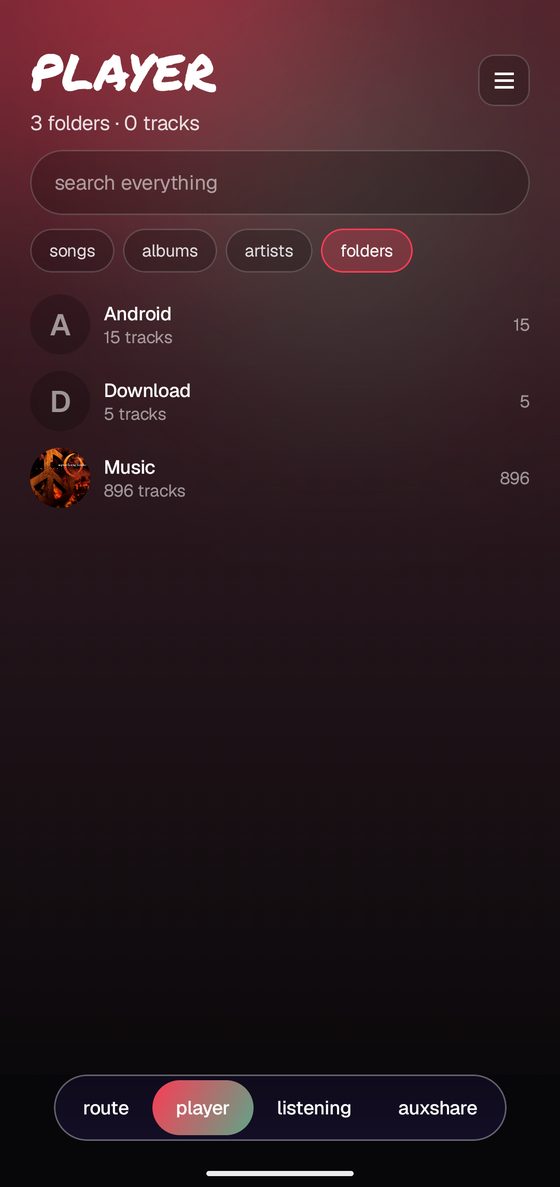
folders walks the real directory tree on your phone rather than guessing from tags. It starts at the highest folder that contains all your music, so there is nothing pointless to scroll past.
Each row shows how many tracks are inside, counting everything in the folders below it too.
If you organise your music by hand, this is the view that respects it.
go as deep as your folders go
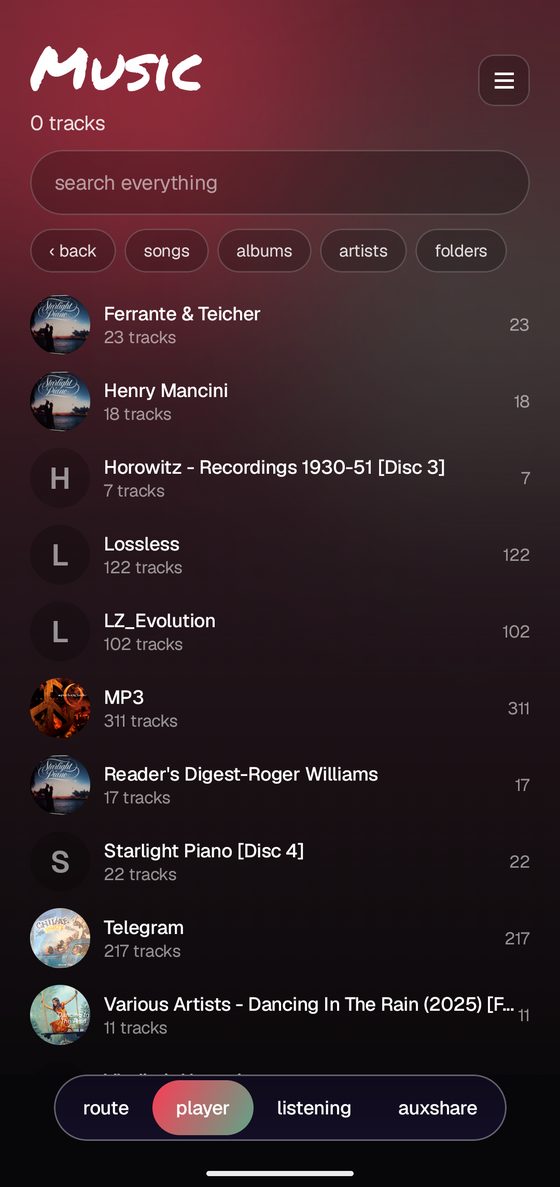
Tap a folder to open it. Subfolders and any loose tracks in that folder appear together, subfolders first.
‹ back climbs one level at a time, so you can wander down and come back up without losing your place.
Tap a track to play it. Everything else in that view becomes the queue, so opening an album and tapping track three plays from three to the end.
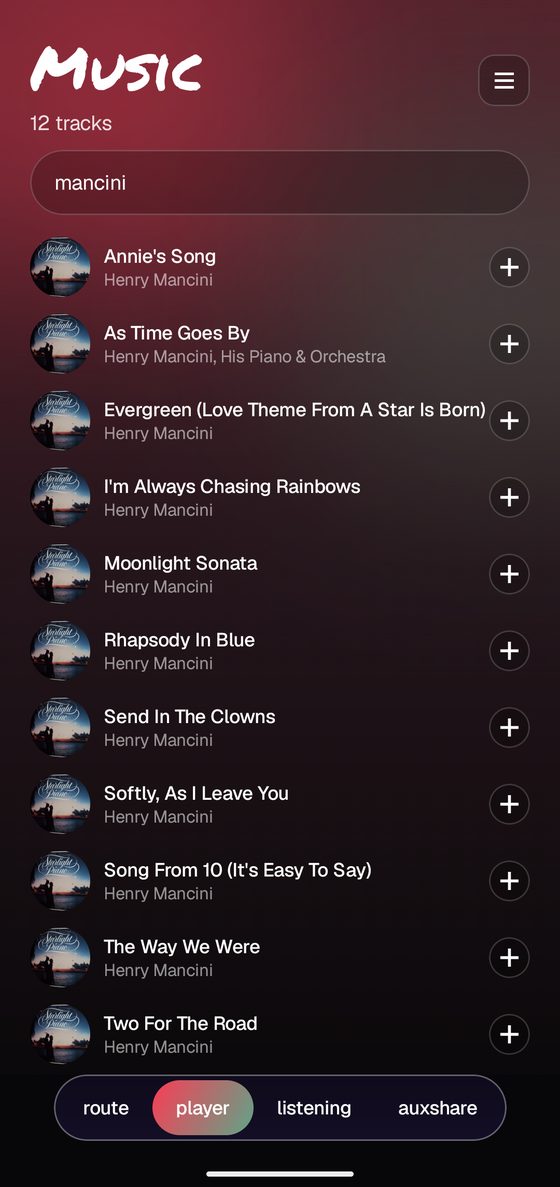
search finds it faster
The box at the top searches titles, artists and albums at once. Results come back as you type.
It searches the whole library, not just the view you happen to be in, so you do not have to remember where you filed something.
Clear the box to go back to browsing exactly where you left off.
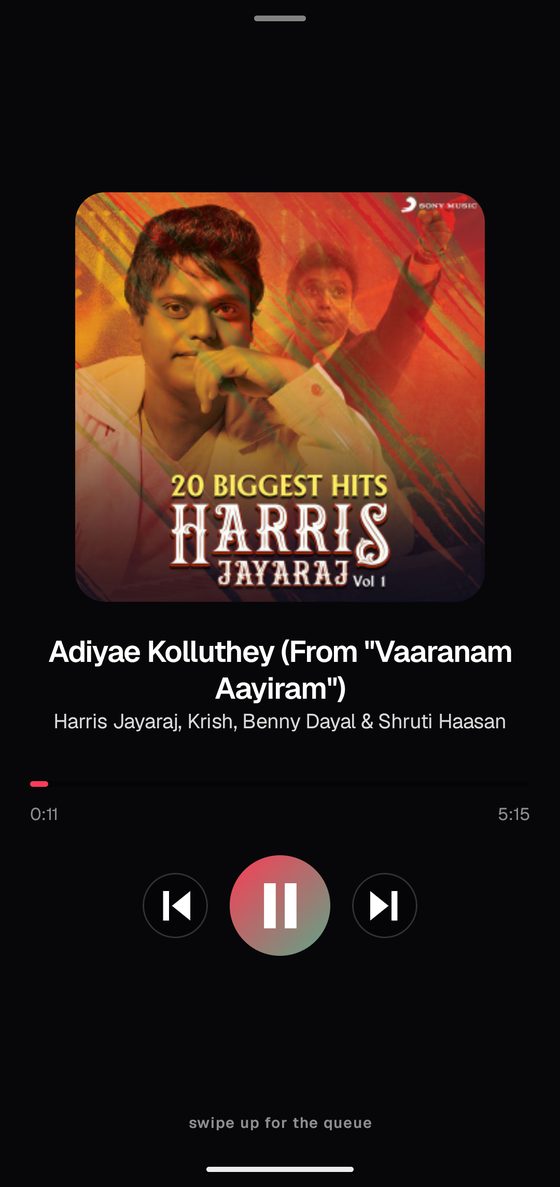
the now playing screen
A small bar sits above the tabs while something is playing. Tap it, or swipe up on it, to open this.
- Tap anywhere on the bar to jump to that point in the song.
- Swipe down, or press back, to tuck it away and carry on browsing.
Playback keeps going with the screen off, and appears on your lock screen and in your car like any other player.
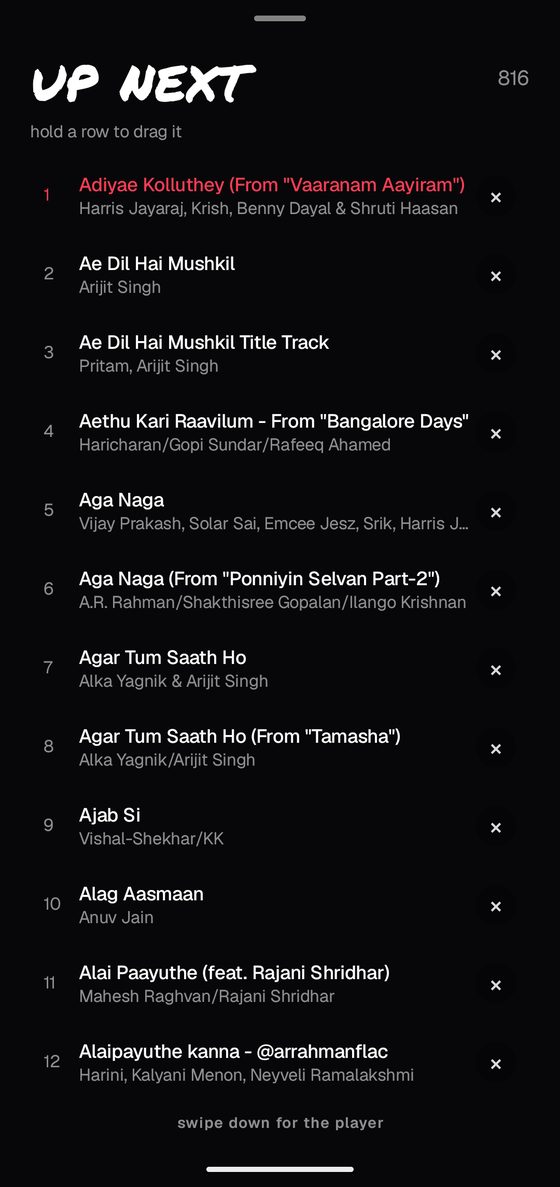
swipe up for the queue
From the now playing screen, swipe up and you get up next: everything lined up, numbered, with the current song in red.
- Hold a row and drag it somewhere else in the queue.
- × removes a track without stopping what is playing.
- Tap a row to jump straight to it.
Swipe down to get back to the player.
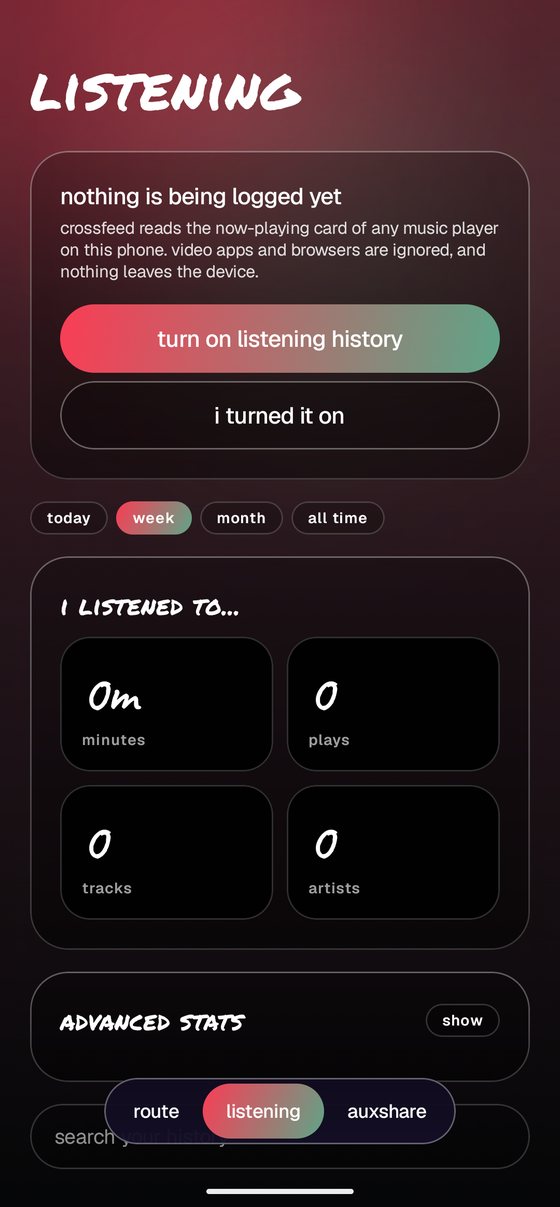
switch on your listening diary
Crossfeed can quietly note what you play in any app, not just its own player, and turn it into stats. It starts switched off and empty.
Tap turn on listening history. That opens an Android settings screen, because reading what is playing needs a permission only you can grant.
Nothing here leaves your phone. The diary lives in a private file only Crossfeed can read, and you can erase it whenever you like.
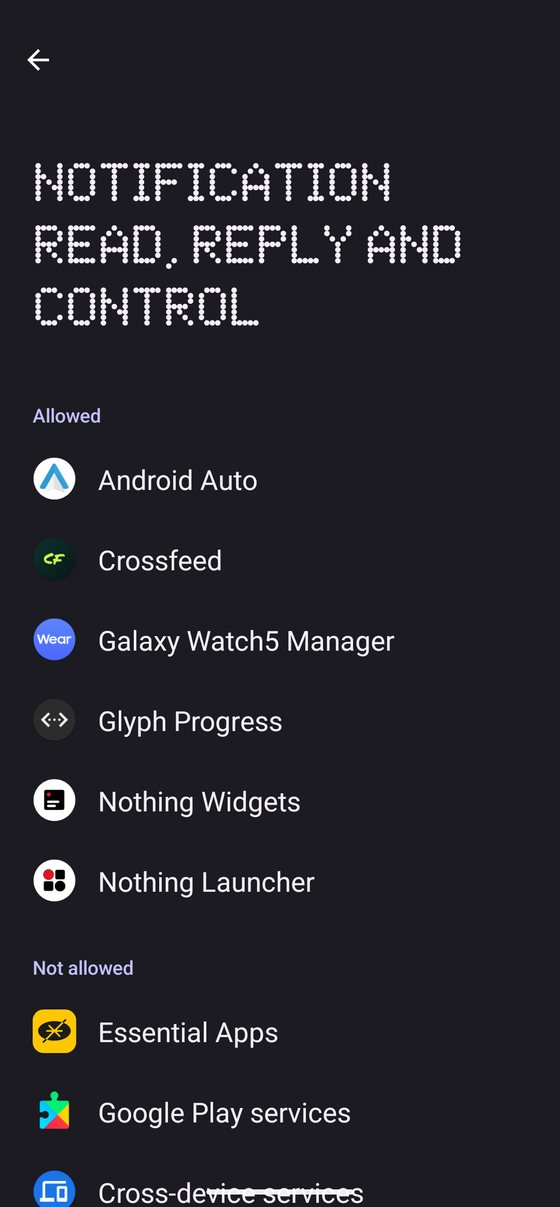
allow it, then come back
Find Crossfeed Player in this list and turn the switch on. Android will warn you this is a powerful permission. It is, so here is exactly what Crossfeed does with it.
It reads the now playing card that music apps publish: song, artist, and how far through you are. It does not read your messages, and none of it is sent anywhere.
Greyed out? If it says restricted setting and will not turn on, that is because the app was installed by hand rather than from a store. Open App info, tap the three dots in the corner, choose allow restricted settings, then come back.
Press back to return to Crossfeed and tap i turned it on.
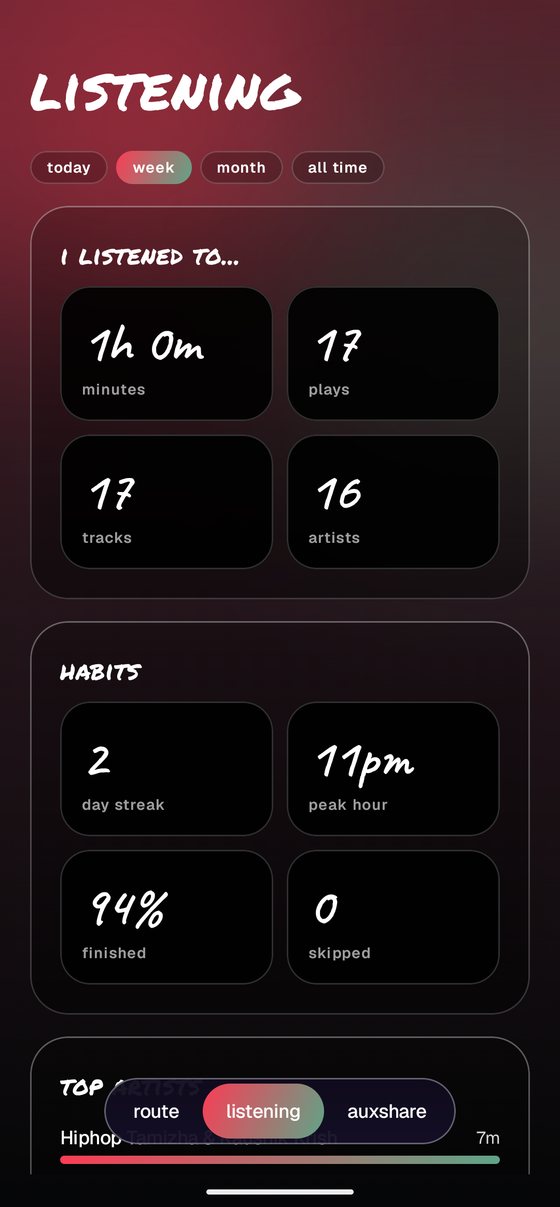
what shows up
Play something for about half a minute and this tab fills in on its own. There is nothing else to set up.
- today, week, month, all time across the top changes everything below it.
- habits gives your streak, your peak hour, how often you finish songs and how often you skip.
- Further down: top artists, most played, top albums, genres, and which apps you used.
Totals are kept separately from the diary, so you can erase your history and keep your stats.
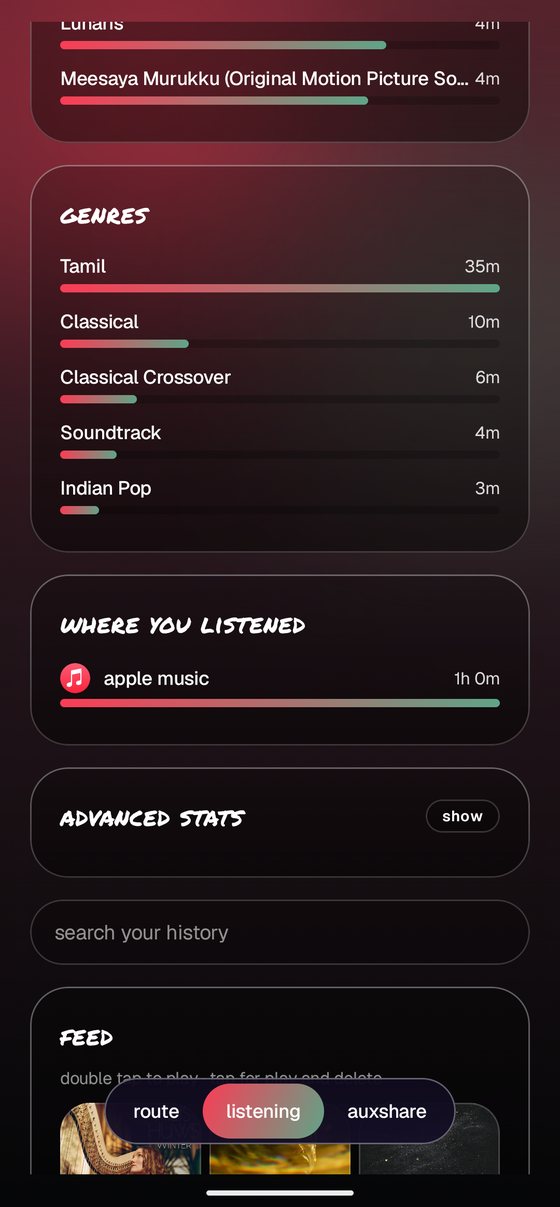
your own feed
Everything you play appears as a grid of covers, newest first, with a search box above it.
- Double tap a cover to play it again.
- Single tap for a play button and a way to delete that entry.
- The badges show how long you listened and how long ago.
see all plays opens the full history grouped by day, and there is an export button that writes the lot to a spreadsheet in your Downloads.
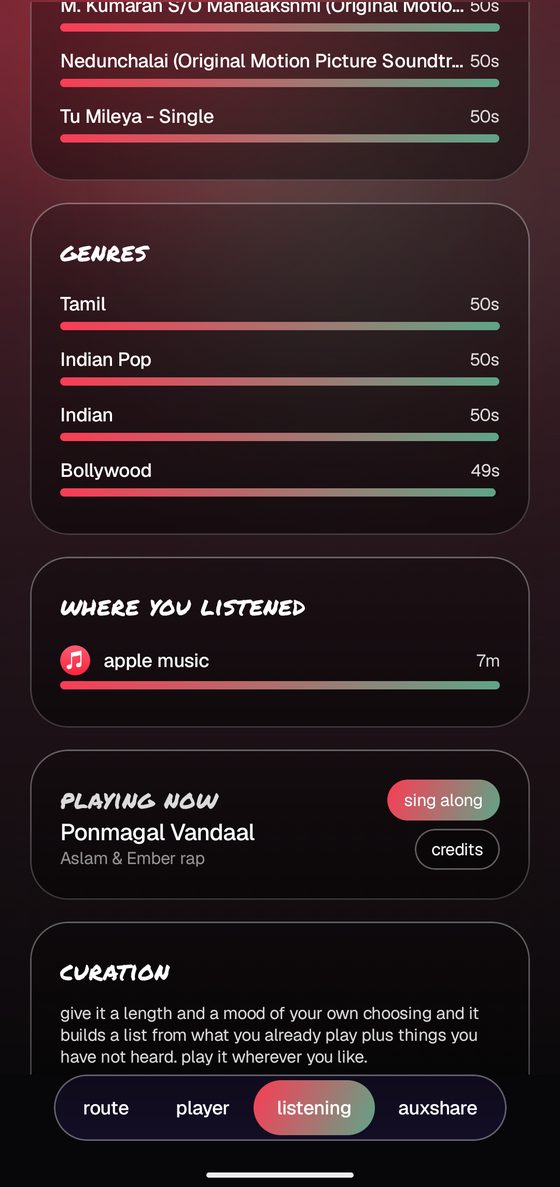
the playing now card
Whenever something is playing anywhere on the phone, a playing now card appears with two buttons on it.
Both work for music in any app, not only Crossfeed's own player. Spotify, Apple Music, YouTube Music, your own files.
No card? Nothing is playing, or the listening permission from step 2 has not been granted yet.
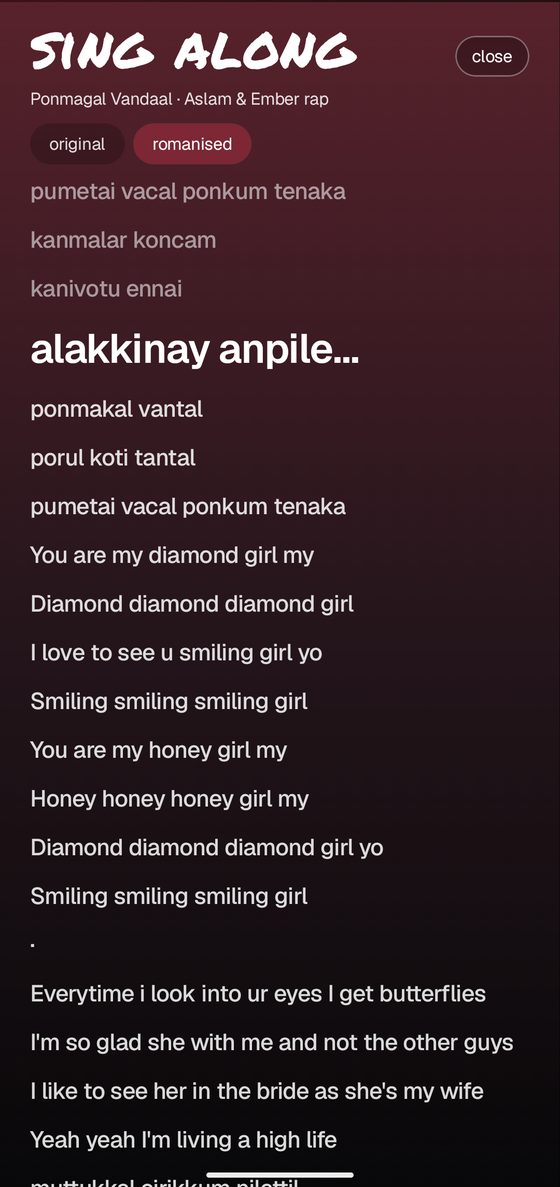
sing along
Tap sing along for time-synced lyrics. The line you are on grows and the rest fade back, and it scrolls itself as the song moves.
If the words are not in the Latin alphabet you get an original / romanised switch, so you can actually sing along to a Tamil or Hindi track without reading the script.
Lyrics come from LRCLIB, which is free and needs no account. Some songs simply are not in it, and then it says so.
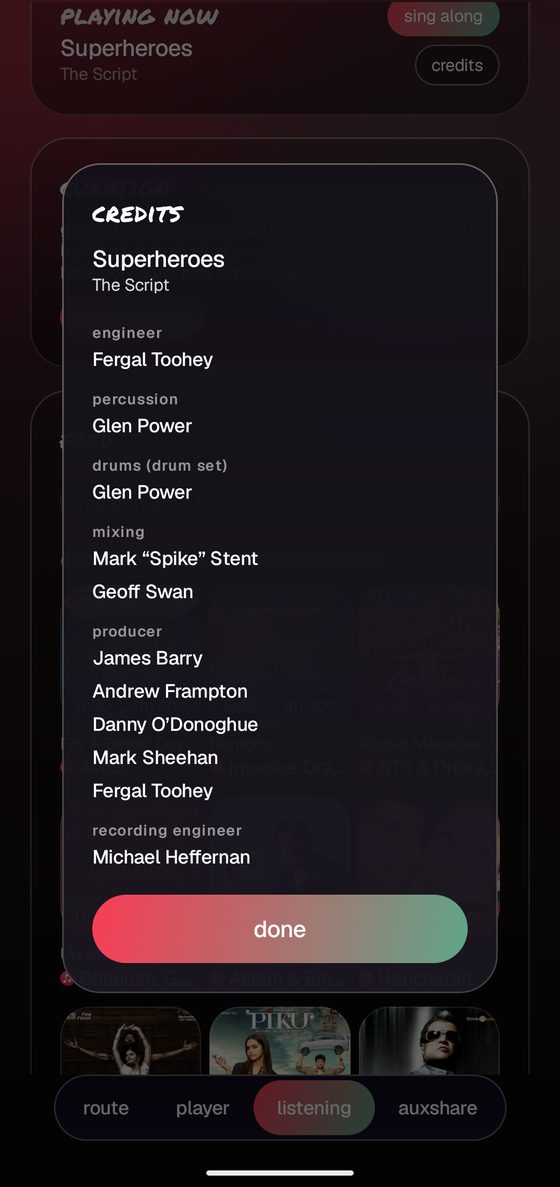
credits
Tap credits to see who actually made the song: writers, producers, engineers, the session players. The stuff no streaming app shows you.
Credits are looked up once and then remembered, so the second time you play a song it is instant.
Coverage is best for released albums with a proper catalogue entry. Newer singles and film tracks are often thin, and it will tell you when there is nothing to show.
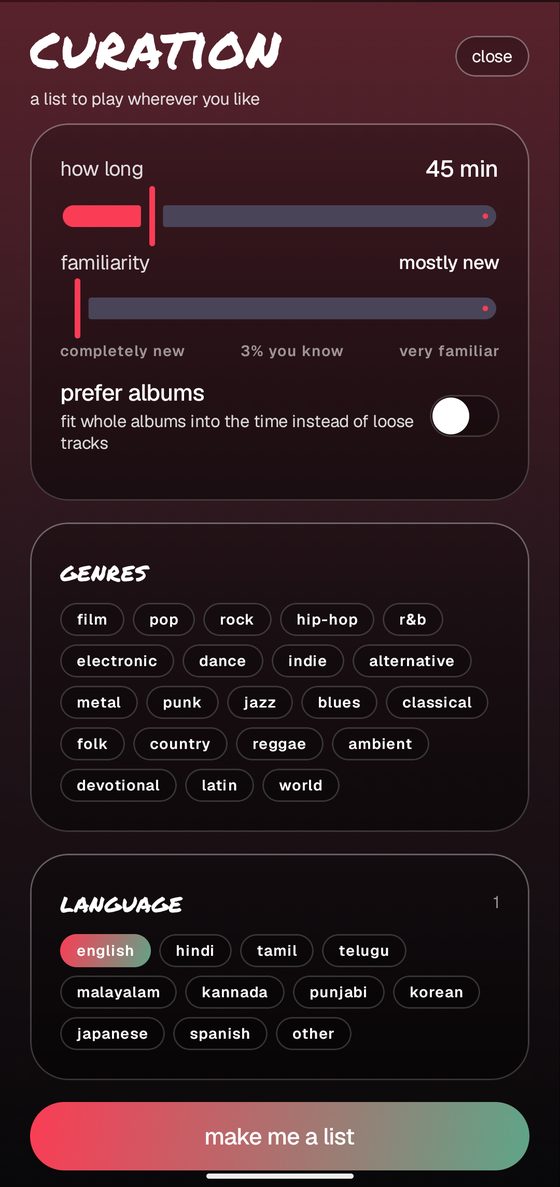
make me a list
Tell it how long you have and what mood you are in, and it builds a list to fit.
- how long is the total running time you want to fill.
- familiarity slides from completely new to very familiar, and tells you what share you already know.
- prefer albums fits whole albums into the time instead of loose tracks.
- genres and language narrow it further. Pick as many as you like, or none for anything.
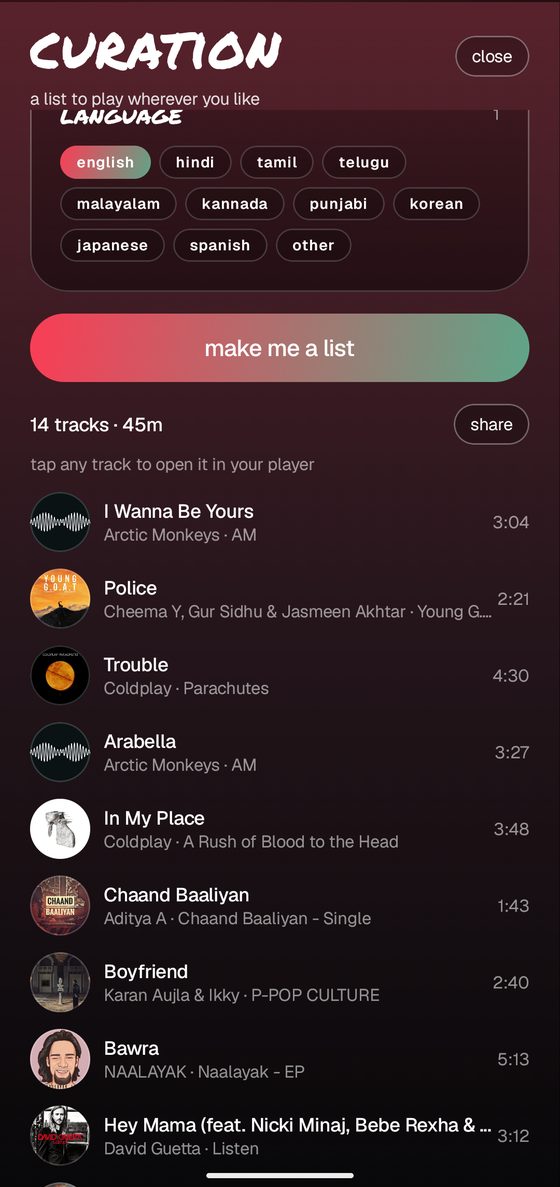
the list it gives you
Out comes a track list that adds up to the time you asked for, capped at two songs per artist so it does not turn into one album.
Tap any track to open it in your own music app, exactly like a shared link. share sends the whole list to somebody as text.
It does not take over playback or build a playlist behind your back. It hands you a list and gets out of the way.
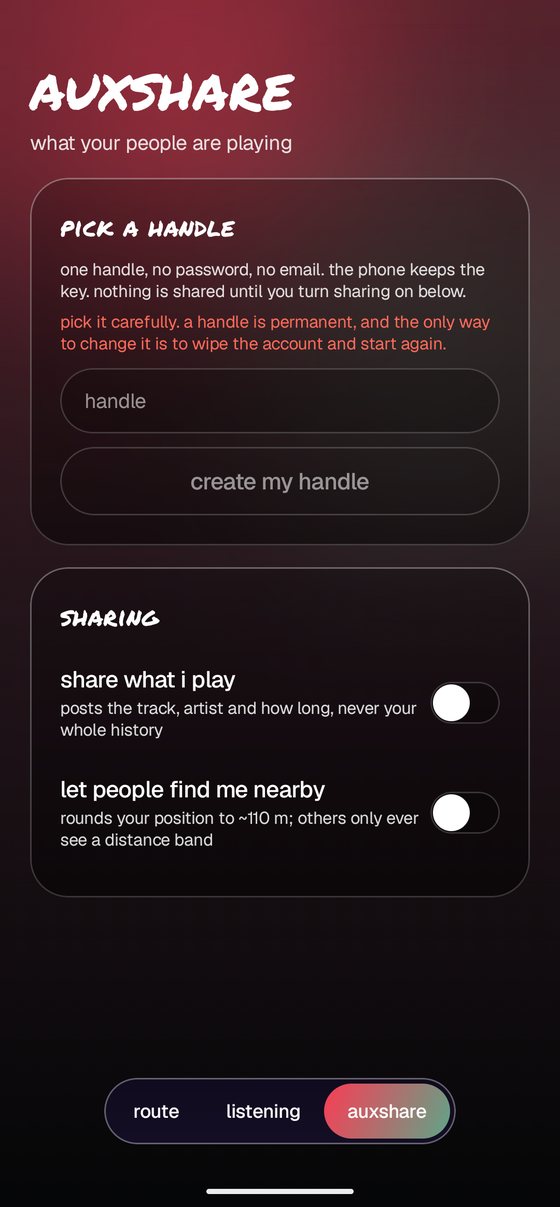
choose a handle
Auxshare is the social half: a small feed of what your friends are playing. Type a name and tap create my handle. No password, no email, no verification.
Before you tap. Your handle is permanent. The key to it is stored on this phone only, so if you uninstall the app you lose access. If that happens, ask for the same handle again and it files a request rather than handing you a numbered one.
Making a handle shares nothing by itself. Both sharing switches below it stay off until you move them.
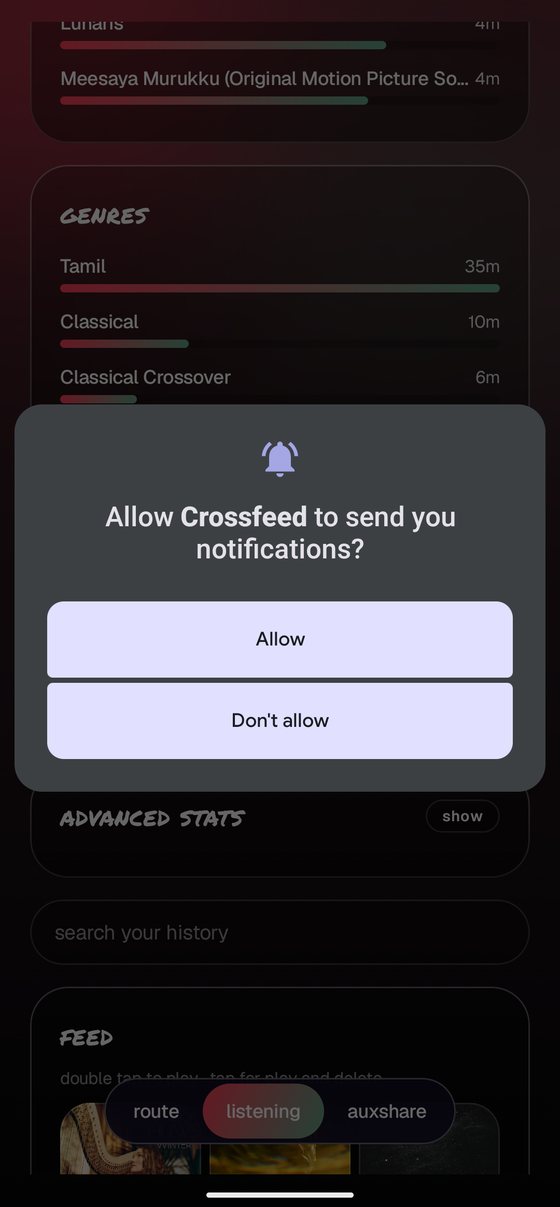
say yes to notifications
Straight after you make a handle, Android asks whether Crossfeed may send you notifications. Tap Allow.
It is used for two things: when somebody reacts to a song you shared, and when one of your people happens to be playing the exact song you are playing right now.
Tap Don't allow and everything still works, you just have to open the app and check the bell yourself.
add people, and accept them
When somebody adds you they appear under wants to connect. Tap yes to connect or no to decline. Declining is silent, and they cannot tell it apart from being ignored.
The circles underneath are who is listening right this second, with the song and artist below each face. Tap one to play the same thing yourself.
To add somebody, scroll down to your people and type their handle. Handles are exact, so check the spelling with them.
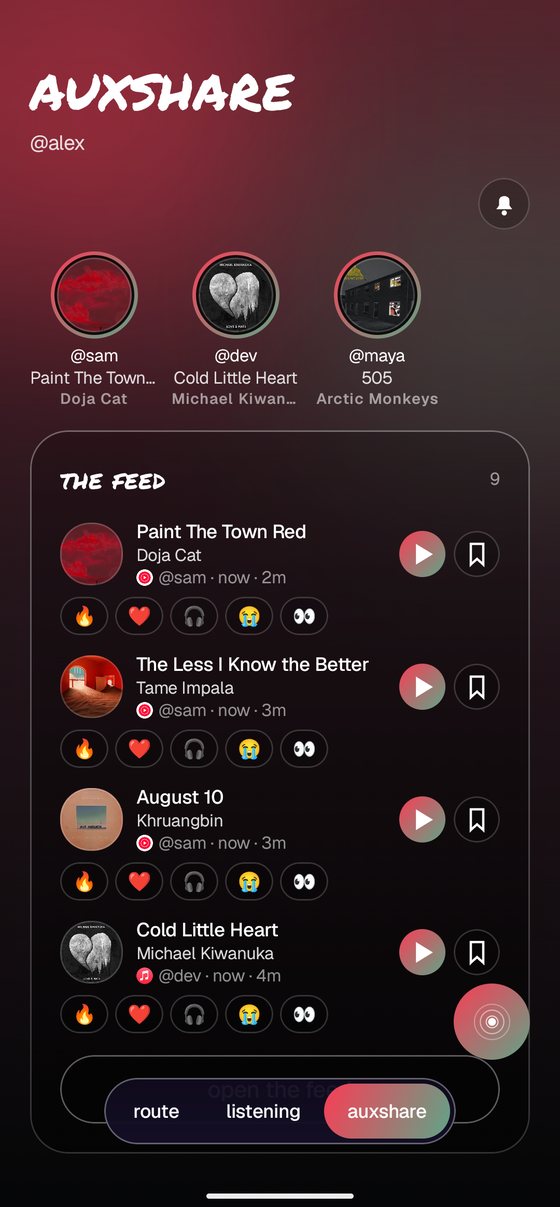
reading the feed
The feed is your people's recent songs, newest first. The small icon under each one shows which app they were using.
- Tap an emoji to react. One reaction each, tap another to change it.
- play opens the song in your app. bookmark saves it for later.
Under it, your people lists everyone you are connected to, with a small cross to disconnect.
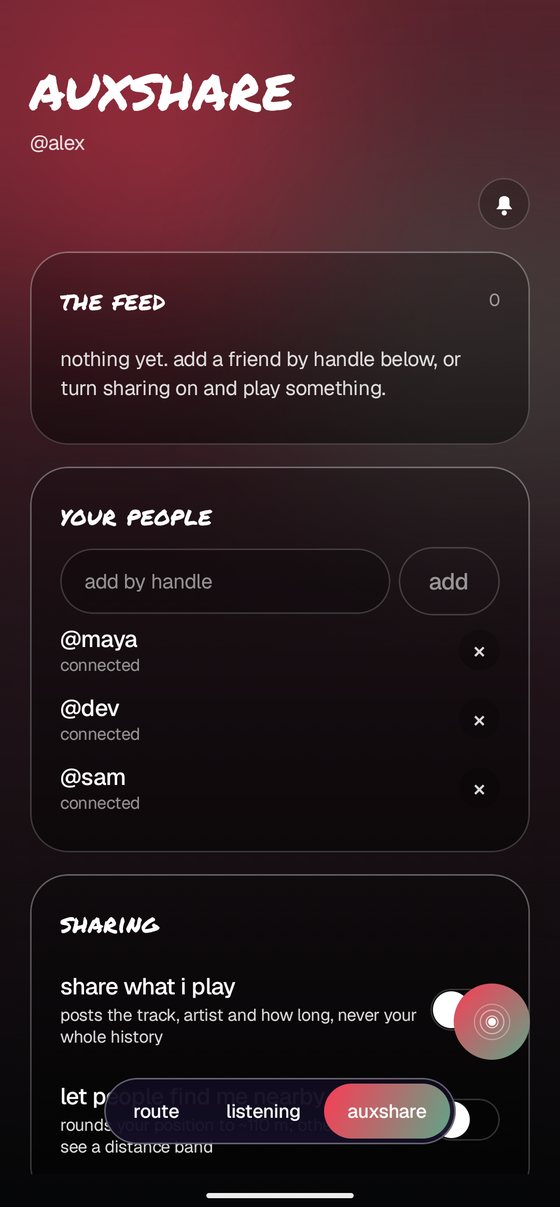
decide what you share
Both switches start off and stay off until you move them.
share what i play. Posts the song, the artist and how long you listened, to your connections only. Not your history. A song has to play for about twenty seconds before it counts, so skipping around posts nothing.
let people find me nearby. Lets other Crossfeed users in your area see you. Your position is rounded to roughly a hundred metres, and others only ever see a rough distance, never a place.
Turn either off at any time and sharing stops immediately. wipe my account at the bottom removes everything from the server for good.
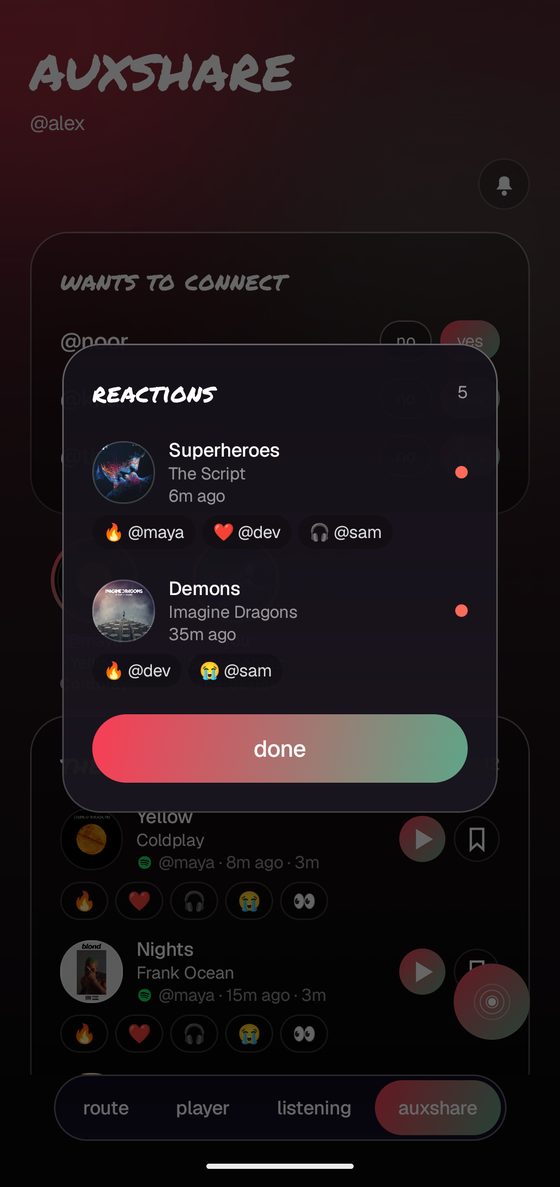
who reacted to what
The bell at the top of auxshare collects reactions to your own songs, grouped by track so you can see everyone who liked the same thing at once.
A dot marks anything you have not seen yet, and the count sits on the bell itself.
Your own songs never appear in the feed. They live in the listening tab, and here when somebody reacts to one.
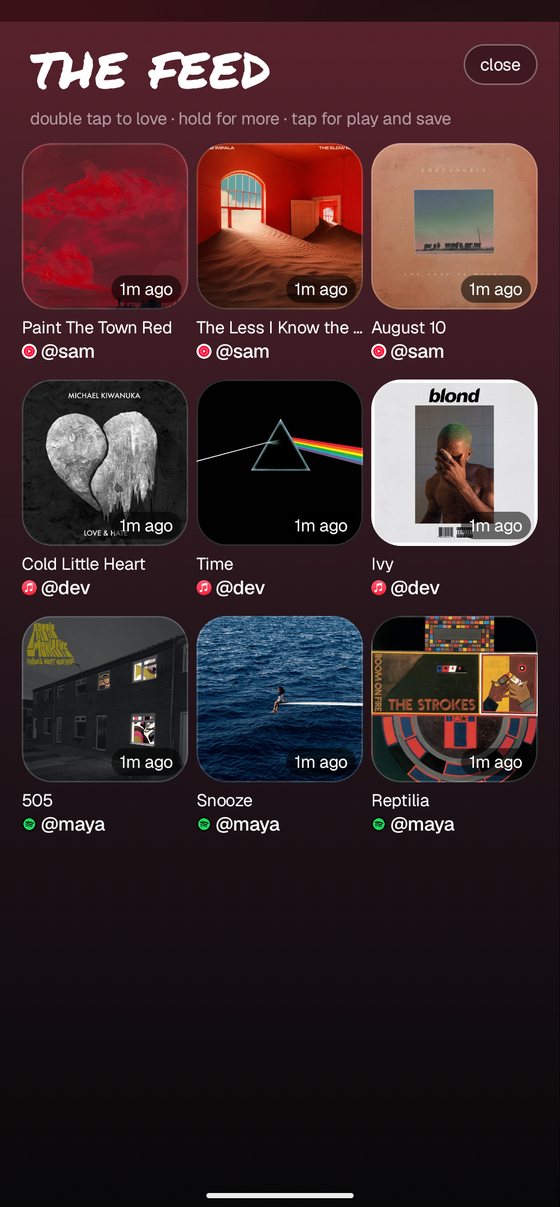
the full feed
open the feed gives you everything as a wall of covers that keeps loading as you scroll.
- Double tap a cover to love it.
- Hold for the other reactions.
- Single tap for play and save.
Same posts as the list view, just faster to skim.
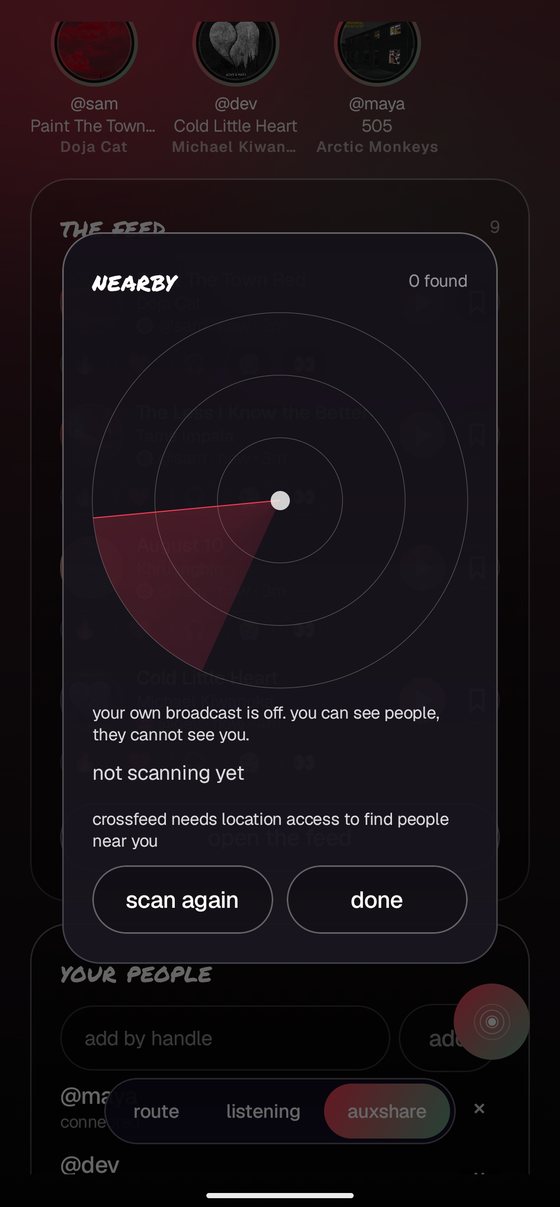
finding people nearby
The round button in the bottom corner opens the radar. It looks for other Crossfeed users close by who have also turned nearby on.
You see a handle and a rough distance band, never an exact position. Nobody appears unless they have chosen to be findable, and it tells you plainly when your own broadcast is off.
Needs location permission, and only while the radar is open.
that's everything
Links open where you want them, your own files play without a second app, your listening records itself, and your people can see what you are on if you let them.
- Links not opening in Crossfeed? Back to route, link handling.
- Listening tab still empty? The permission probably did not stick. Toggle it off and on.
- Player tab empty? It needs the audio permission, and ignores anything under 45 seconds.
- Feed empty? Nobody you have connected with has played anything for twenty seconds yet.
Do not uninstall if you care about your handle. You can ask for it back, but it has to be granted by hand.